
Help page

JSONBuddy Help

Convert JSON array to CSV dialog

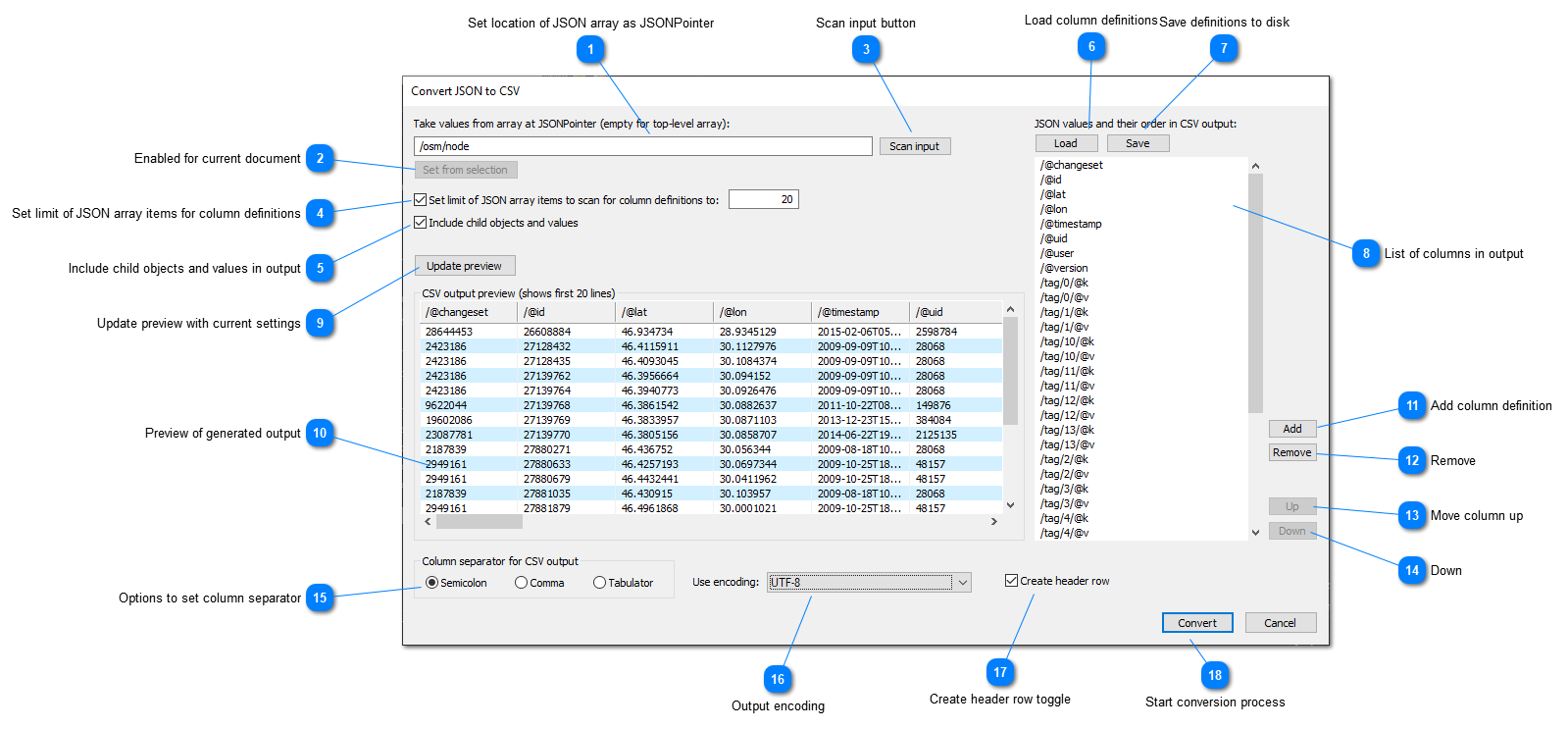
Locate the intended JSON array, define columns and CSV output options, then preview and verify the conversion.

JSONBuddy for Windows Convert JSON to CSV dialog
Authentic Help evidence of the JSON-to-CSV dialog; exact controls and streaming behavior require release confirmation.

Locate the source array

Choose a JSON array that represents the rows you need in CSV. The retained Help describes using a JSON Pointer location and copying a pointer from a text or grid selection. Confirm the current command and pointer behavior with a small sample before using it on a production data set.

Define columns and convert

  1. Open the current JSON-to-CSV command for the document or selected files.
  2. Set the array location and scan input to identify candidate columns.
  3. Review column inclusion, order, labels, separator, encoding, and header-row options.
  4. Update the preview and compare a few rows with the input.
  5. Run the conversion and inspect the generated CSV before saving it.

The legacy Help describes streaming input/output, reusable column definitions, and partial output with errors. Confirm size behavior, file handling, labels, and diagnostics in the current Windows release; do not treat an incomplete CSV as a complete conversion.

Related tasks

Review array shape and column definitions

CSV represents rows and columns, while JSON can contain arrays, objects, nested values, and optional properties. Before scanning the full input, confirm that the selected array is the intended row source and that every selected column has a meaningful representation. Nested child values may need explicit inclusion rules; inspect the preview rather than assuming a flattened value has the required meaning.

Use a stable JSON Pointer for the selected array and retain a small fixture with the same shape. If a pointer is copied from a current editor selection, verify it against the fixture after reopening the dialog. This guards against exporting a neighboring array or an empty branch after the document has changed.

Handle incomplete output deliberately

If a conversion reports an input error, stop and compare the produced CSV with the source before distributing it. The historic Help says partial CSV output may be available even when some JSON cannot be processed. Treat that as diagnostic evidence, not as a successful completed export. Correct the input or column configuration, rerun the same sample, and only then process the larger set.

Keep saved column definitions under review. A definition that was correct for one data shape can silently omit a newly introduced property or place values in an unsuitable order for the next consumer.

Check output details before handoff

Open the generated CSV with the target tool and verify its delimiter, encoding, header row, quoting, column order, and number of rows. Compare a first, middle, and final record with the selected JSON array. If a value is missing, inspect whether it was absent in the source, excluded by the column definition, nested below the selected location, or not representable by the chosen output rule.

When exporting several files, keep a record of which inputs succeeded, which produced warnings, and which were skipped. A repeatable conversion is easier to support when a colleague can match each output file to its input and saved definition. Do not replace the source data with a CSV result merely because the preview looks correct; retain a rollback copy until downstream validation is complete.