

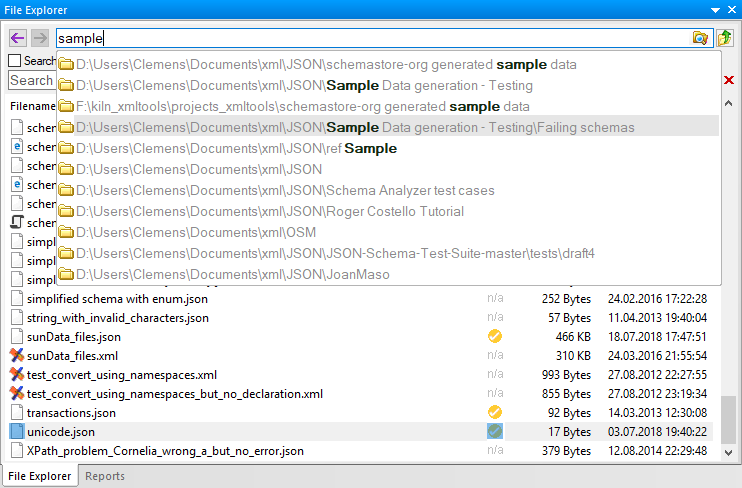
The supplied read-only Help source documents this task. Confirm the exact folder controls, history behavior, column settings, and search options in the current Windows build before relying on them in a team procedure.
Open the right working folder
- Start from a folder that contains the JSON files you intend to inspect.
- Use the current Explorer path or folder-browse control to choose that location.
- Wait for the file and folder list to finish loading before changing the scope.
The retained Help source describes path-history suggestions and adjustable columns. Treat their labels and persistence as release-sensitive rather than fixed instructions.
Narrow the file set deliberately
Use the Find field to reduce the visible list to matching names or patterns. The historical Help describes * and ? wildcards and a clear action; verify their current behavior with a small known folder. Clear the filter before deciding that a file is absent.
Use sub-folder scanning with a stopping point
A recursive search can expose files in deeply nested folders, but it can also take time on a large tree. Start with the smallest useful scope, monitor the result list, and stop the scan when the broader search no longer helps the task.
Continue with the right editor task
Open a selected document in the JSON text editor, use the JSON grid editor for a structured edit, or see the JSON editor overview for the wider Windows workflow.