

Choose readable or compact output
Pretty-print adds indentation and line breaks for review. Remove Whitespace creates a compact representation. Both operations should preserve the JSON data model, so choose the required result rather than treating compactness as validation.
Run the file-based workflow
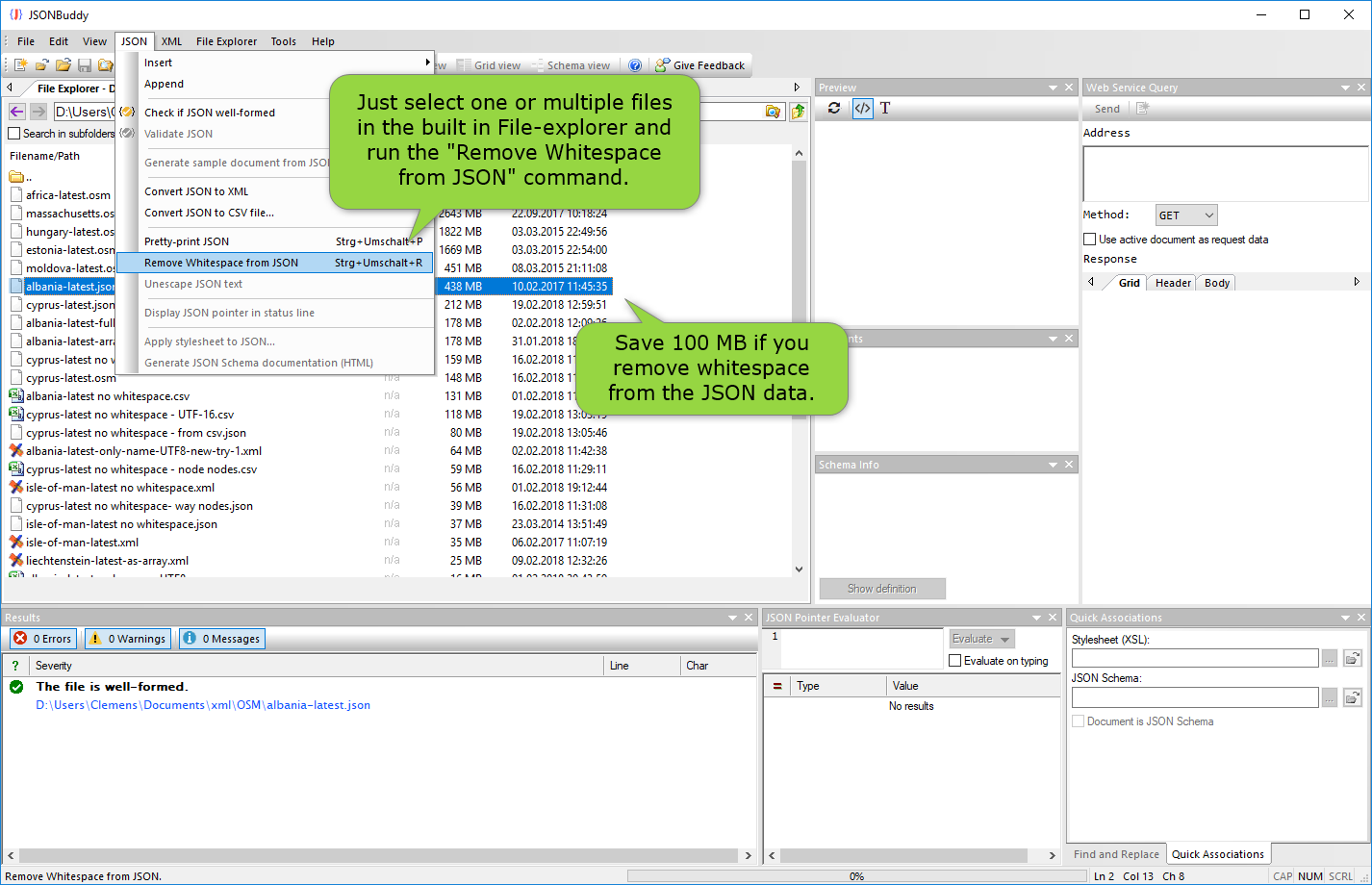
- Open JSONBuddy's built-in File Explorer and select one or more JSON files.
- Use the JSON menu or file context menu to choose the documented pretty-print or whitespace-removal command.
- Review the generated file beside the source and confirm the intended output name before moving it downstream.
- Run a well-formedness or JSON Schema check on the result when the workflow requires validated data.
The legacy page says this command writes a new file and retains the original. Confirm naming, overwrite behavior, encoding, error handling, memory use, and practical limits against the release candidate before relying on that safeguard.
Treat size examples as historical evidence
The production article demonstrates hundreds-of-megabytes inputs, including a file with millions of lines. Those examples show the intended file-based use case; they are not current performance guarantees. Test representative data on the intended Windows system and record the product build, storage, input structure, and elapsed time.
Continue with the closest workflow
Use JSON prettify for formatting choices, the large JSON solution for file-scale validation and editing, or the formatting Help topic for release-current commands.