

Inspect the data before converting it
The retained support workflow addresses large JSON input that should not be treated as an ordinary editor document. Open the input with the Large File view to inspect its structure and identify the JSON Pointer location that should become the conversion starting point. A top-level JSON array can also be a conversion input.
Run the file-based conversion deliberately
- Open the JSON input from the built-in File Explorer window.
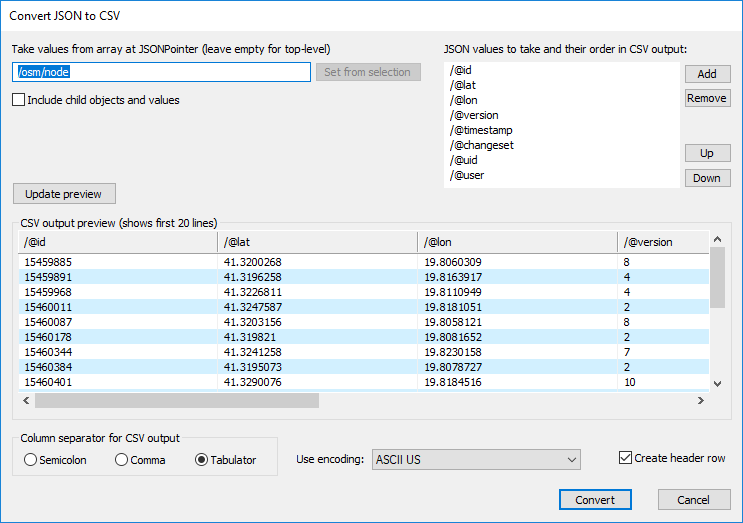
- Choose JSON to CSV file... and wait for the conversion dialog to prepare its input view.
- Set the JSON Pointer starting point, selected columns, and output format.
- Move focus away from the pointer field before relying on the retained value list, then review the CSV preview.
- Choose Convert and inspect the separate CSV output next to the input file.
The legacy article reports timings and sample sizes from a particular test system. They are historical observations, not current performance guarantees; re-test file size, memory behavior, pointer support, output naming, and conversion time with the release candidate.
Verify the output as a separate data product
- Check row and column selection against a small representative JSON sample.
- Confirm quoting, encoding, headers, and the intended output location.
- Open the result as plain text or with the Large File view when it is also large.
- Keep the source JSON and generated CSV together until the conversion has been reviewed.
Continue with the correct large-data workflow
Use the large-data editor-view article before interactive inspection, return to JSON, CSV, and XML conversion for the capability overview, or use large JSON processing for the broader workflow.